Scanner-to-phone display workflow
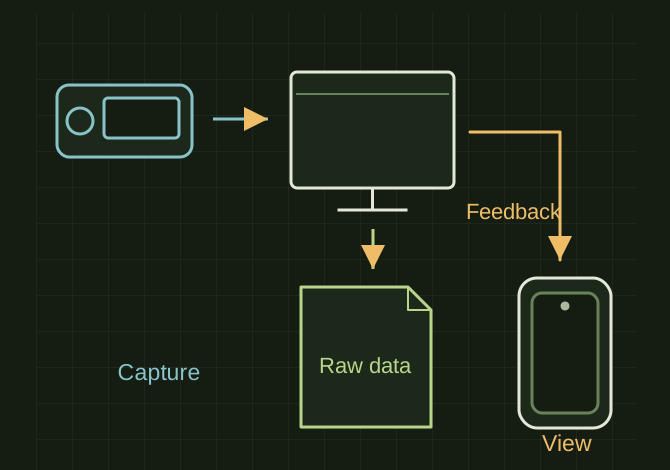
Decide whether the phone is acquiring scans, viewing a computer screen or simply controlling a supported scanner app.
A phone display is not the scan computer
 OPEN FULL SIZE ↗
- Decide
- Capture / view / control
- Verify
- Where raw scans and exports are saved
- Test
- Range and latency
TECHNICAL NOTES///
Decide whether the phone is acquiring scans, viewing a computer screen or simply controlling a supported scanner app.
GOALRun the first test described in this guide and record the result for scanner-to-phone display workflow.
EQUIPMENT
- Scanner / mesh workflow
- Representative test model
- Measurement or inspection method
STEPS
- Identify the exact scanner, software and supported phone operating system.
- If native phone scanning is supported, follow the vendor pairing and storage workflow. Otherwise use an authorized local remote-display method to view the acquisition computer.
- Test wireless range and latency with a short scan before mounting the phone or leaving the computer out of reach.
- Verify where raw scans and exports are saved, then transfer one sample and reopen it.
TROUBLESHOOTING
- A phone display does not provide the GPU or memory required by a desktop scanner. A generic Wi-Fi connection does not establish compatibility. Avoid exposing remote-control ports to the public internet.
THINGS TO WATCH FOR
A phone display does not provide the GPU or memory required by a desktop scanner. A generic Wi-Fi connection does not establish compatibility. Avoid exposing remote-control ports to the public internet.
RESULTThe phone can show usable live feedback and the scan is saved on the intended device.
DEVELOPMENT HISTORY///
Imported as an independent manifest record; public copy keeps uncertainty visible.
SPECIFICATION///
RELEASED MATERIAL///
The phone can show usable live feedback and the scan is saved on the intended device.
The record keeps what is known at this revision. Unfinished tests stay unfinished here.