Turning grid snap off in Shapr3D
Disable only the snapping behavior that is interfering with placement, while retaining useful geometric references.
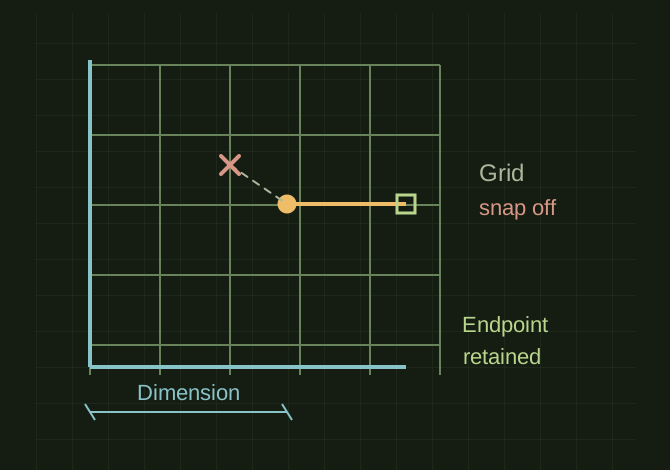
Between grid points, still constrained
 OPEN FULL SIZE ↗
- Off
- Grid snapping
- May remain
- Endpoint and midpoint snaps
- Accuracy
- Dimensions and constraints
TECHNICAL NOTES///
Disable only the snapping behavior that is interfering with placement, while retaining useful geometric references.
GOALRun the first test described in this guide and record the result for turning grid snap off in shapr3d.
EQUIPMENT
- Shapr3D
- Representative test model
- Measurement or inspection method
STEPS
- Open Snapping Options in the current interface.
- Turn off Grid snapping. Leave sketch endpoints, midpoints or other reference snaps enabled if they help the task.
- Move or draw a test point away from the grid to confirm the change.
- Use dimensions and constraints for final accuracy rather than relying on freehand placement.
TROUBLESHOOTING
- Grid snapping and sketch constraints are separate systems. Disabling a snap does not remove an existing coincident or horizontal constraint.
THINGS TO WATCH FOR
Grid snapping and sketch constraints are separate systems. Disabling a snap does not remove an existing coincident or horizontal constraint.
RESULTA test point can be placed between grid nodes while deliberate dimensions still control the sketch.
DEVELOPMENT HISTORY///
Imported as an independent manifest record; public copy keeps uncertainty visible.
SPECIFICATION///
RELEASED MATERIAL///
A test point can be placed between grid nodes while deliberate dimensions still control the sketch.
The record keeps what is known at this revision. Unfinished tests stay unfinished here.