Filling missing faces in Shapr3D
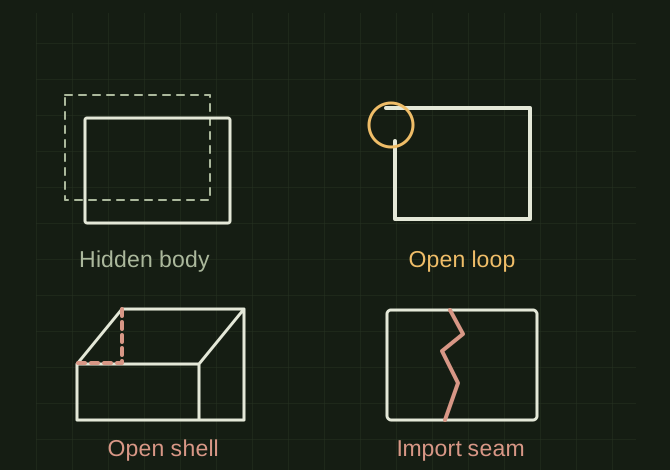
Diagnose what “missing face” means before trying to fill it: a hidden body, open sketch, open surface and damaged import need different fixes.
Four things that look like a missing face
 OPEN FULL SIZE ↗
- Distinguish
- Hidden body / open sketch / open surface / damaged import
- Verify
- Intended solid before export
TECHNICAL NOTES///
Diagnose what “missing face” means before trying to fill it: a hidden body, open sketch, open surface and damaged import need different fixes.
GOALRun the first test described in this guide and record the result for filling missing faces in shapr3d.
EQUIPMENT
- Shapr3D
- Representative test model
- Measurement or inspection method
STEPS
- Check visibility and section-view settings first; show all relevant bodies.
- For a sketch, find gaps, duplicates and self-intersections until the intended region becomes selectable.
- For a solid with an unwanted opening, try a simple profile and additive extrusion that joins the body, or repair the source feature/import if appropriate.
- Inspect the result from both sides and confirm the intended solid exists before export.
TROUBLESHOOTING
- An imported STL is mesh data, not ordinary editable solid faces. A patch that looks closed may create an internal face or multiple bodies. Do not silently cap a real design opening.
THINGS TO WATCH FOR
An imported STL is mesh data, not ordinary editable solid faces. A patch that looks closed may create an internal face or multiple bodies. Do not silently cap a real design opening.
RESULTThe region extrudes or subtracts predictably and an exported test reopens without an unintended hole.
DEVELOPMENT HISTORY///
Imported as an independent manifest record; public copy keeps uncertainty visible.
SPECIFICATION///
RELEASED MATERIAL///
The region extrudes or subtracts predictably and an exported test reopens without an unintended hole.
The record keeps what is known at this revision. Unfinished tests stay unfinished here.